

- Look up records and financial reports
- Build charts
- Generate Excel, PowerPoint, and Word files, returned as download links
Pricing and requirements
- Subscription: AskEmber requires an active Campfire subscription.
- No additional fees: There’s currently no extra charge for AskEmber and no separate AI usage fee.
- Pricing questions: Reach out to support@campfire.ai. You don’t need a Campfire account to ask.
Set up AskEmber
Connect Slack (admins)
You need the Can change connections permission to connect Slack.
1
Open the connection settings
In Campfire, go to Ember AI > Settings > Notifications.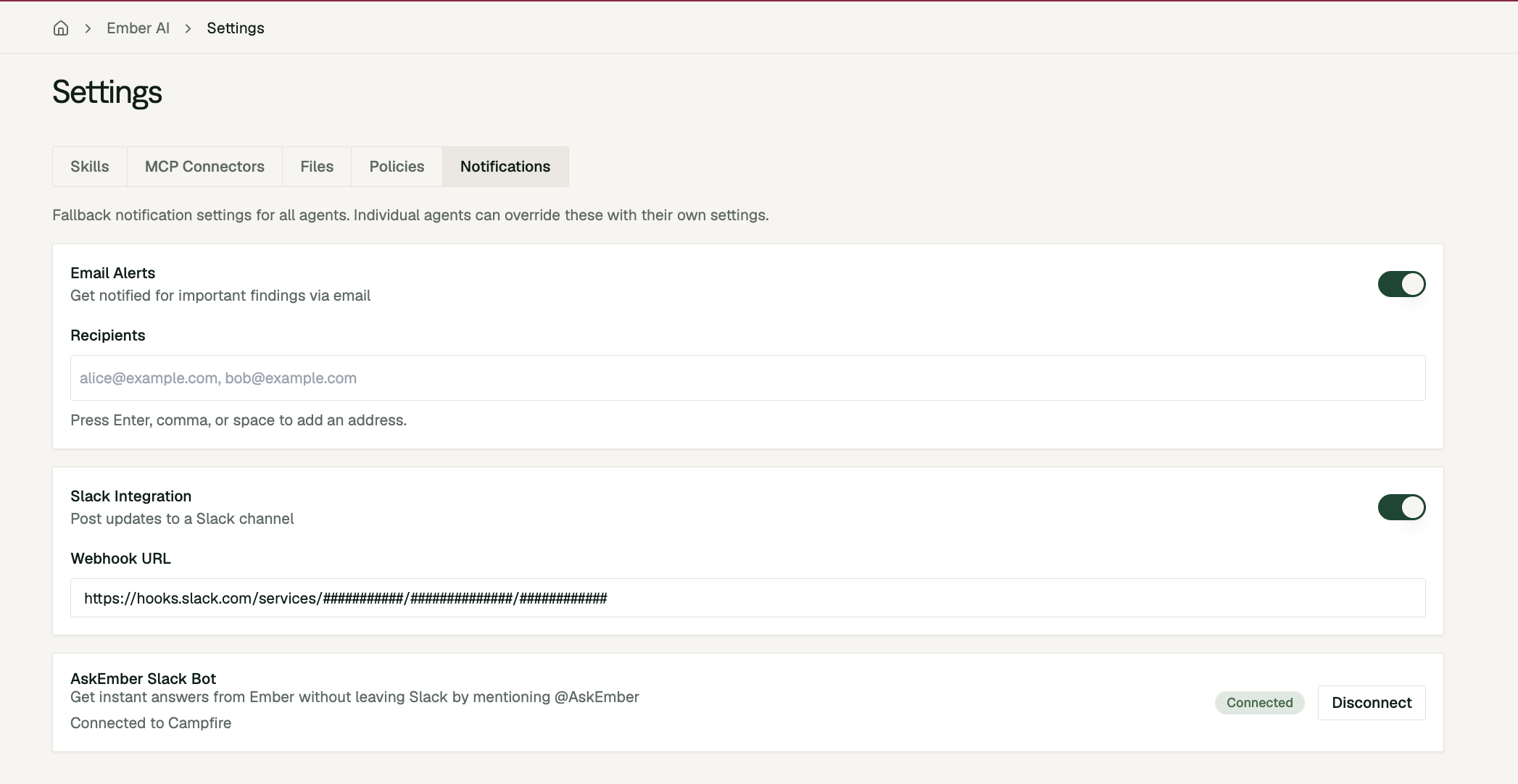
2
Add AskEmber to Slack
On the AskEmber Slack Bot card, click Add to Slack, then approve the installation in Slack.
3
Confirm the connection
You’ll return to Campfire with a “Slack connected” message, and the card will show your Slack workspace name.
4
Add AskEmber to channels
In Slack, add @AskEmber to each channel where you want people to use it.
Link your account (each user, once)
The first time you mention @AskEmber, it shows a message visible only to you in that channel with a Link Slack to Campfire button.1
Click the button
Select Link Slack to Campfire and sign in to Campfire if prompted.
2
Confirm your company
Check that the company shown is the one you want to use.
3
Return to Slack
Go back to Slack and ask your question again.
@AskEmber login.
Ask a question
1
Mention AskEmber
In a channel that includes AskEmber, type @AskEmber followed by your question.
2
Wait for the reply
Ember replies in a thread. You’ll see a quick acknowledgment first, then the full answer when it’s ready.
3
Ask follow-ups
Mention @AskEmber again in the same thread. Ember remembers your previous exchanges with AskEmber in that thread.
Permissions and privacy
- AskEmber has the same Campfire permissions as you. It only shows data that your Campfire role and entity access allow.
- Slack Connect isn’t supported. AskEmber doesn’t work in channels with external participants.
- Usage counts toward your Ember AI spend limits. If your company reaches a limit, AskEmber replies with a limit message instead of an answer.
Current limitations
- Mentions are required: AskEmber only responds to @AskEmber mentions, so include the mention in every message, including follow-ups.
- Questions and lookups only: AskEmber can prepare changes to records, but nothing is created or updated until you review and confirm it in Campfire.
- Slack file uploads aren’t read: AskEmber ignores files uploaded in Slack.
Disconnect AskEmber
Admins with the Can change connections permission can click Disconnect on the AskEmber Slack Bot card in Campfire. AskEmber stops responding immediately.Disconnecting doesn’t remove the app from Slack. To remove it entirely, also uninstall it in your Slack app settings.