> ## Documentation Index
> Fetch the complete documentation index at: https://help.campfire.ai/llms.txt
> Use this file to discover all available pages before exploring further.
# Migration & Setup
> Connect Ramp to Campfire, complete your sync settings, and cut over from your previous accounting system.
Ramp syncs to one accounting system at a time, so connecting Campfire usually means a cutover, in this order: prepare in Ramp, connect Campfire, complete your sync settings, then run the switch from inside Ramp. If Ramp has never been connected to another accounting provider, skip the cutover sections where marked.
Connect as someone who is both a Campfire admin and a Ramp admin. Before you
start, set up your **chart of accounts** (including the default accounts
payable account bills post to), **entities**, **departments**, and **tags** in
Campfire, and connect your **bank feed** so payments can be matched.
## Before you cut over
*Skip this section if Ramp was never connected to another accounting system.*
Give yourself a few weeks. Rushing the cutover is the most common cause of unmatched payments and missing coding later.
* **Pick a transition date: the first day of your go-live month.** Generate final statements from your old system through the last day of the prior month.
* **Pay off open bills in Ramp (recommended).** Approve and pay as many Ramp bills as you can before the transition, and pause creating new ones until Campfire is connected. This isn't always possible, but every bill still open at cutover means manual payment work later (see the warning below). In-flight bills do not transfer automatically.
* **Sync card transactions to your old system** up to the transition date, and let any uncleared transactions clear first.
* **Sync reimbursements to your old system** up to the transition date.
* **Export a backup from Ramp.** The **export a backup** link is on Ramp's **Switch accounting providers** screen (**Accounting > Settings > Danger zone > Switch providers**). Save your coded transactions and rules before disconnecting; large exports take a while, so do this ahead of your cutover call.
Bills dated before your transition are loaded into Campfire by CSV during
migration. Campfire still matches their payments from the bank feed, but it
does not auto-apply the match: you review and apply each one. The fewer open
bills cross the line, the less manual work after go-live.
## Connect Campfire
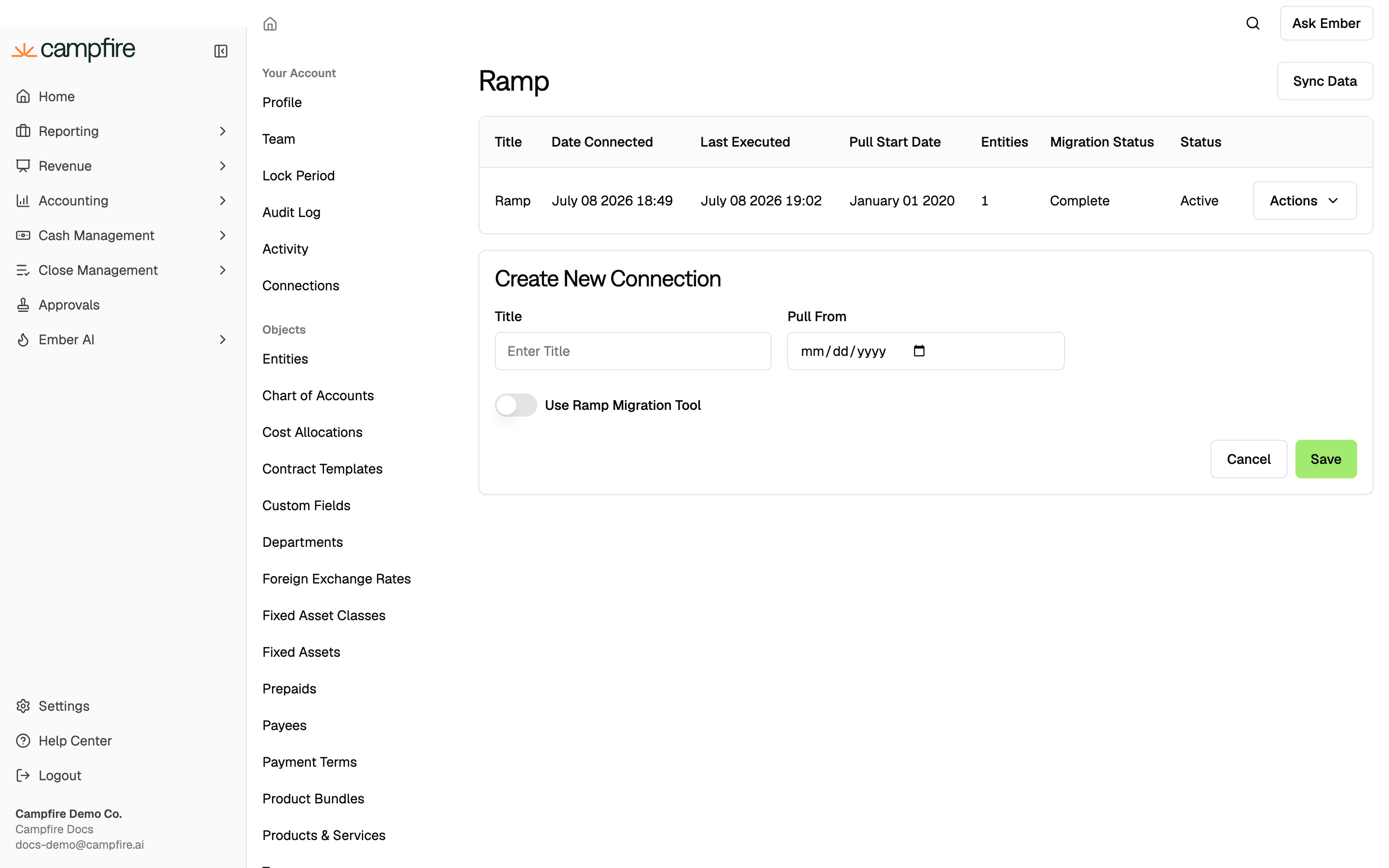
In Campfire, go to [**Settings > Connections >
Ramp**](https://app.meetcampfire.com/v2/settings/ramp) and click **New
Connection**.
Enter a **Title**, set the **Pull From** date to your transition date, turn
on **Use Ramp Migration Tool** if you're cutting over from another system,
and click **Save**.
 Sign in to Ramp when redirected and authorize the connection. You return to
Campfire once it succeeds.
Open the connection's **Actions** menu and choose **Edit Connection**, then
set the fields below for each entity. (The same menu has **View Imported
Bills** and **View Imported Reimbursements** for checking synced records
later.)
Sign in to Ramp when redirected and authorize the connection. You return to
Campfire once it succeeds.
Open the connection's **Actions** menu and choose **Edit Connection**, then
set the fields below for each entity. (The same menu has **View Imported
Bills** and **View Imported Reimbursements** for checking synced records
later.)
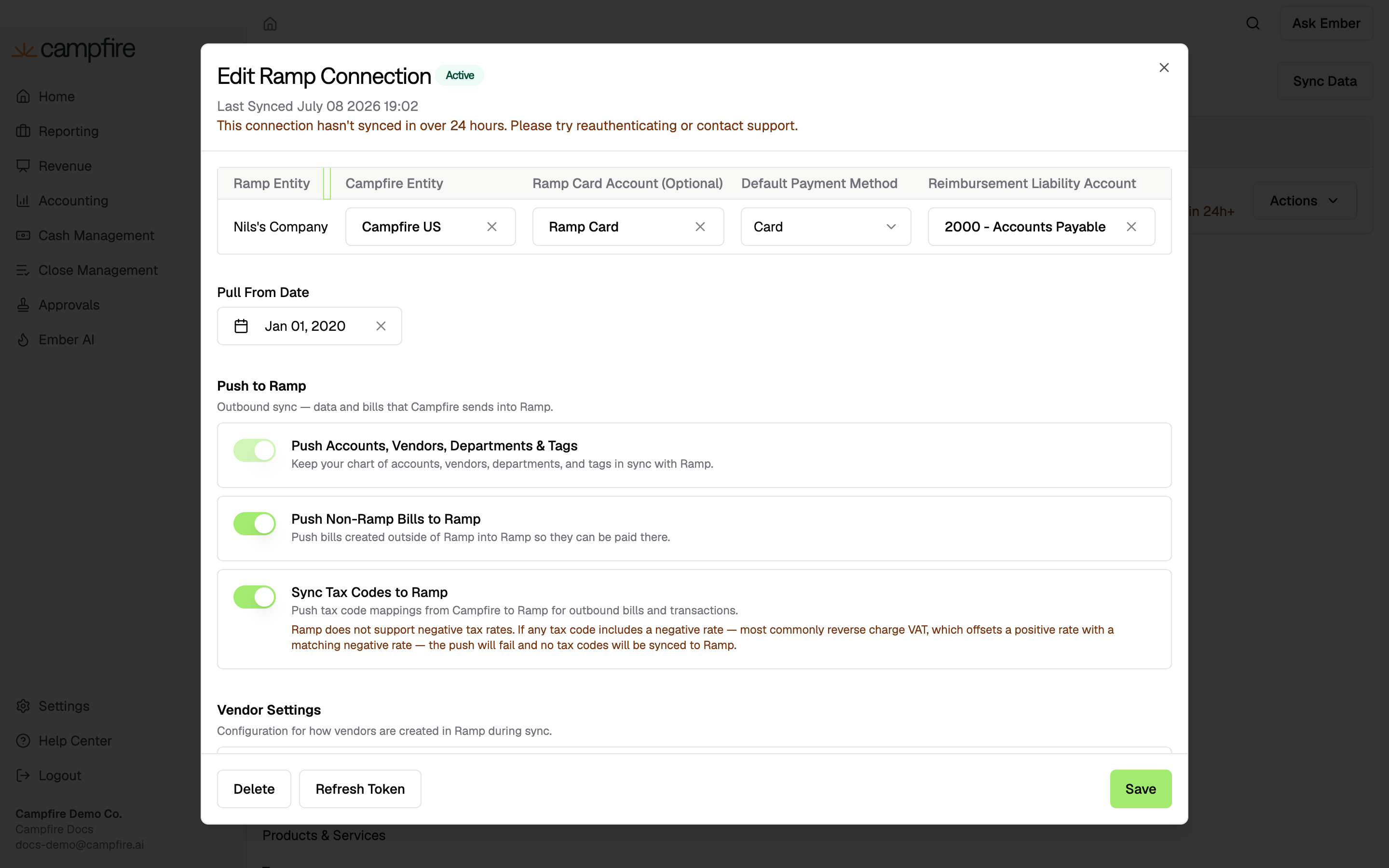 | Field | What it sets |
| ----------------------------------- | ---------------------------------------------------------------------------------------------------------------------------------------------------------------------------------------------------------------------------------------------------------------------------------- |
| **Campfire Entity** | The entity that Ramp activity posts to. |
| **Ramp Card Account** | The Ramp card liability account credited on card transactions. You can refine this later. |
| **Reimbursement Liability Account** | The account credited when reimbursements sync. This column appears once **Create Bills from Reimbursements on Approval** is turned on below. Use a dedicated account, separate from your main accounts payable and bill-payment accounts, so reimbursements are easy to reconcile. |
Each Ramp business unit maps to one Campfire entity. Activity for a business unit you haven't mapped is skipped until you map it, so map every entity you use.
### When to leave the migration tool off
Keep **Use Ramp Migration Tool** on for a normal cutover. Turn it off only when there is nothing to migrate:
* You are already connected to Campfire in Ramp and are just deleting and recreating the connection (you have already migrated once).
* You were never connected to a previous accounting provider in Ramp, so there are no historical codings to carry over.
## Sync settings
Complete these before running the switch in Ramp, so records sync with the right behavior from the first pull. Open the connection from [**Settings > Connections > Ramp**](https://app.meetcampfire.com/v2/settings/ramp); the settings are grouped into what Campfire pushes to Ramp, what it pulls from Ramp, and how activity posts.
| Field | What it sets |
| ----------------------------------- | ---------------------------------------------------------------------------------------------------------------------------------------------------------------------------------------------------------------------------------------------------------------------------------- |
| **Campfire Entity** | The entity that Ramp activity posts to. |
| **Ramp Card Account** | The Ramp card liability account credited on card transactions. You can refine this later. |
| **Reimbursement Liability Account** | The account credited when reimbursements sync. This column appears once **Create Bills from Reimbursements on Approval** is turned on below. Use a dedicated account, separate from your main accounts payable and bill-payment accounts, so reimbursements are easy to reconcile. |
Each Ramp business unit maps to one Campfire entity. Activity for a business unit you haven't mapped is skipped until you map it, so map every entity you use.
### When to leave the migration tool off
Keep **Use Ramp Migration Tool** on for a normal cutover. Turn it off only when there is nothing to migrate:
* You are already connected to Campfire in Ramp and are just deleting and recreating the connection (you have already migrated once).
* You were never connected to a previous accounting provider in Ramp, so there are no historical codings to carry over.
## Sync settings
Complete these before running the switch in Ramp, so records sync with the right behavior from the first pull. Open the connection from [**Settings > Connections > Ramp**](https://app.meetcampfire.com/v2/settings/ramp); the settings are grouped into what Campfire pushes to Ramp, what it pulls from Ramp, and how activity posts.
 ### Push to Ramp
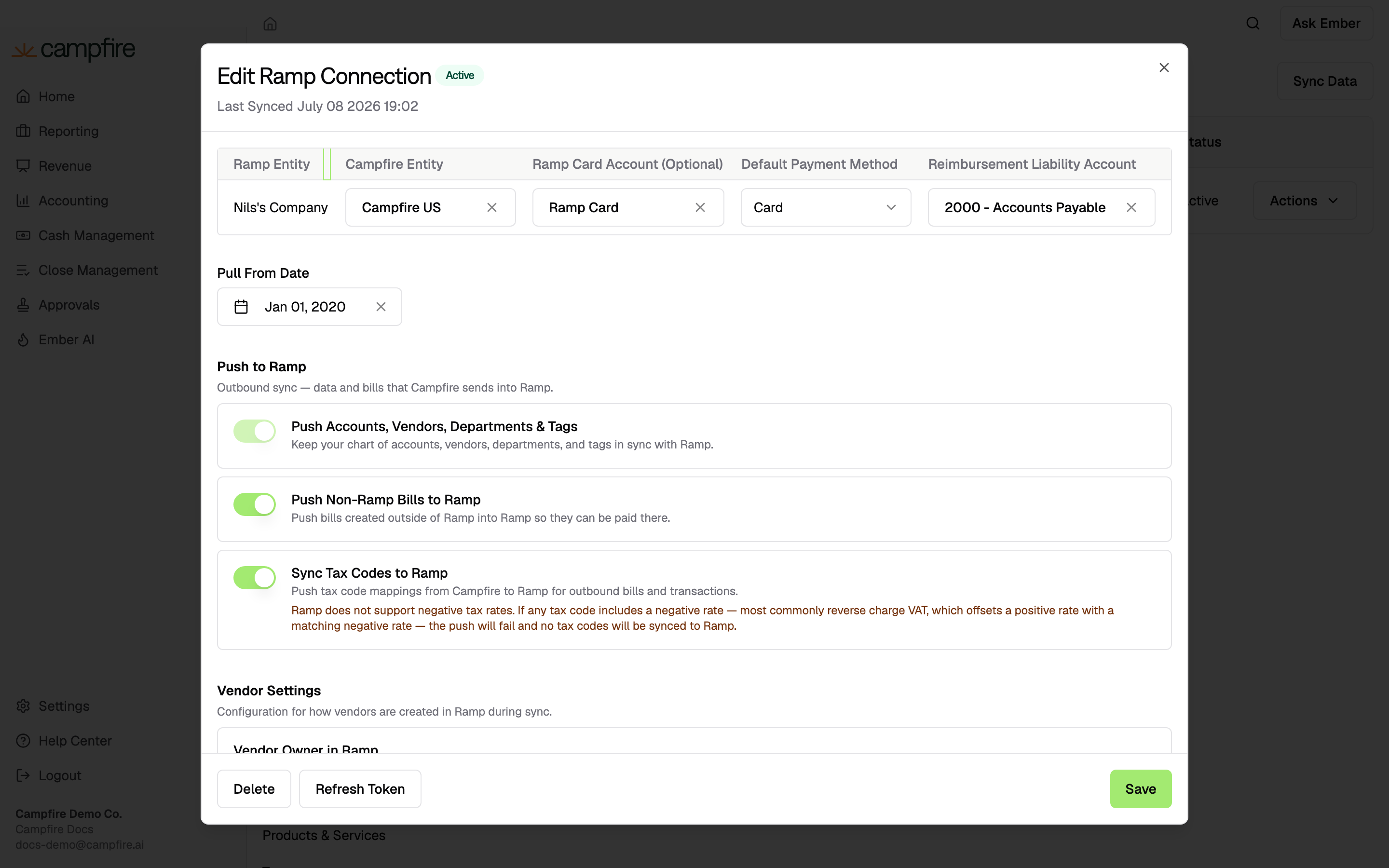
Data Campfire sends into Ramp so spend is coded there against your Campfire structure.
| Setting | What it does | Recommended |
| ---------------------------------------------- | -------------------------------------------------------------------------------------------------------------------------------------------------------------------------------------------------------------------------------------------------------------------- | --------------------------------------- |
| **Push Accounts, Vendors, Departments & Tags** | Keeps your chart of accounts, vendors, departments, and tags in sync with Ramp so you can build coding rules in Ramp from Campfire data. Locked on once the connection runs through Ramp's accounting integration (the standard path). | On (always on for standard connections) |
| **Push Non-Ramp Bills to Ramp** | Lets you push bills created in Campfire into Ramp to pay them there. Requires the setting above, and only one connection can have it enabled. | As needed |
| **Sync Tax Codes to Ramp** | Pushes tax code mappings to Ramp for outbound bills and transactions. Note: Ramp does not support negative tax rates; a tax code pairing a positive rate with a matching negative rate (most often reverse-charge VAT) makes the push fail with no tax codes pushed. | As needed |
| **Vendor Owner in Ramp** | The Ramp user set as owner and contact on vendors Campfire creates in Ramp. | Required to create vendors in Ramp |
**Vendor Owner** is required whenever the push is on: Campfire cannot create a vendor in Ramp without an owner. It is not needed to pull bills or other data from Ramp.
### Push to Ramp
Data Campfire sends into Ramp so spend is coded there against your Campfire structure.
| Setting | What it does | Recommended |
| ---------------------------------------------- | -------------------------------------------------------------------------------------------------------------------------------------------------------------------------------------------------------------------------------------------------------------------- | --------------------------------------- |
| **Push Accounts, Vendors, Departments & Tags** | Keeps your chart of accounts, vendors, departments, and tags in sync with Ramp so you can build coding rules in Ramp from Campfire data. Locked on once the connection runs through Ramp's accounting integration (the standard path). | On (always on for standard connections) |
| **Push Non-Ramp Bills to Ramp** | Lets you push bills created in Campfire into Ramp to pay them there. Requires the setting above, and only one connection can have it enabled. | As needed |
| **Sync Tax Codes to Ramp** | Pushes tax code mappings to Ramp for outbound bills and transactions. Note: Ramp does not support negative tax rates; a tax code pairing a positive rate with a matching negative rate (most often reverse-charge VAT) makes the push fail with no tax codes pushed. | As needed |
| **Vendor Owner in Ramp** | The Ramp user set as owner and contact on vendors Campfire creates in Ramp. | Required to create vendors in Ramp |
**Vendor Owner** is required whenever the push is on: Campfire cannot create a vendor in Ramp without an owner. It is not needed to pull bills or other data from Ramp.
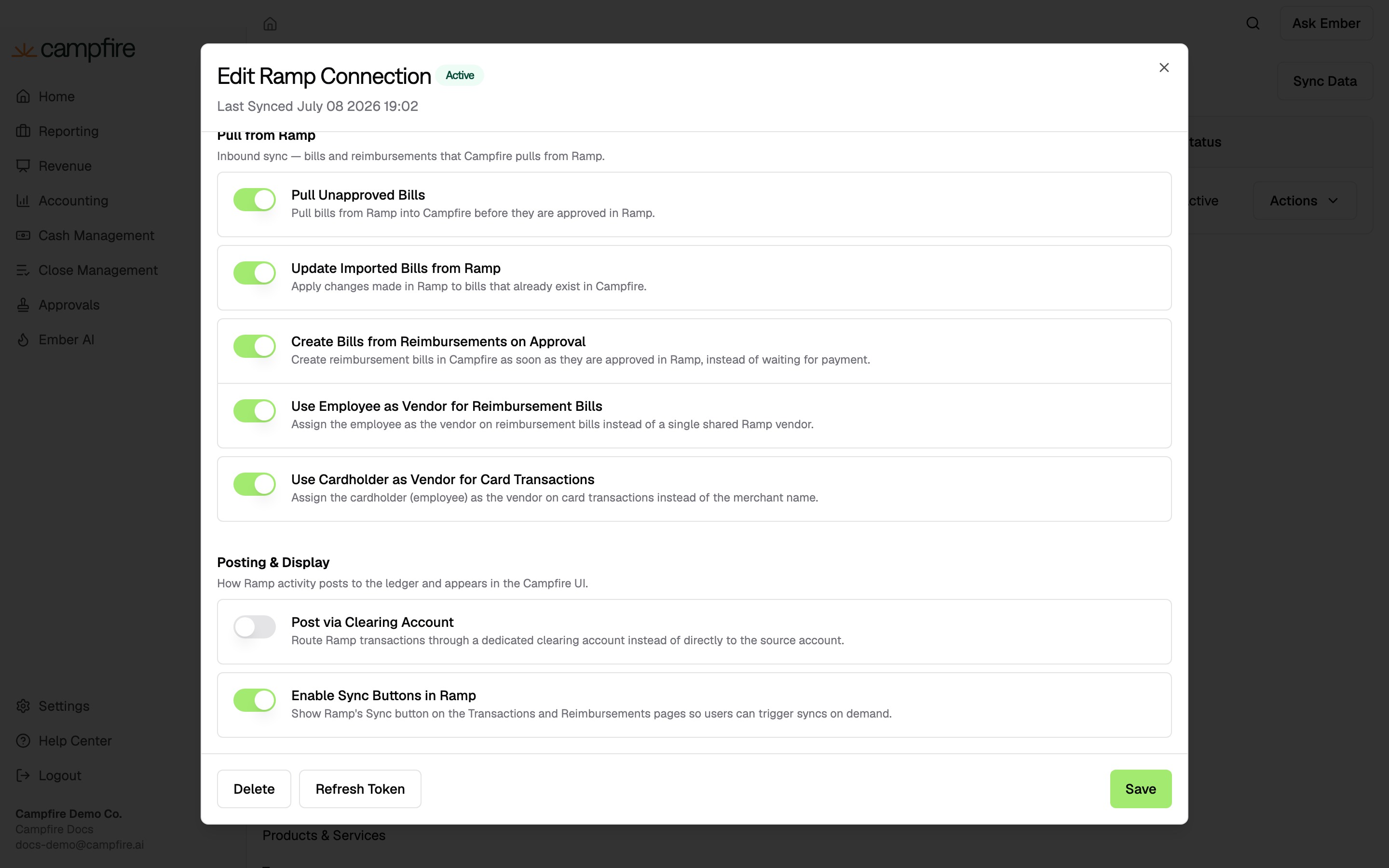
 ### Pull from Ramp
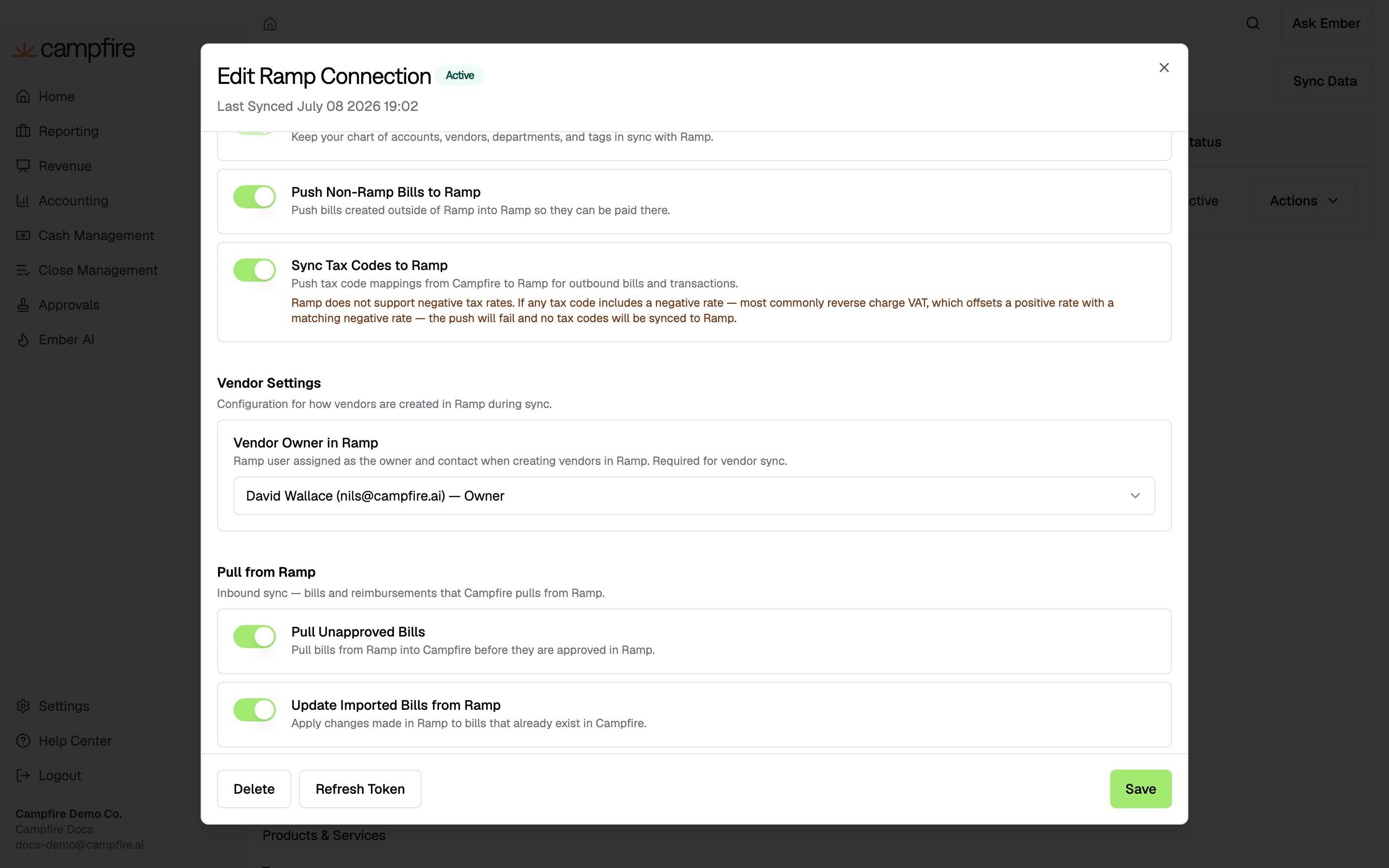
Bills and reimbursements Campfire pulls from Ramp.
| Setting | What it does | Recommended |
| -------------------------------------------------- | ------------------------------------------------------------------------------------------------------------------------------------------------------------------------------------------------------------------------------------------------------------------------------------------- | ----------------------------------------- |
| **Pull Unapproved Bills** | Pulls bills into Campfire before they are approved in Ramp. | On if you want visibility before approval |
| **Update Imported Bills from Ramp** | Applies later Ramp changes to bills already in Campfire. Off by default, so Campfire edits to synced bills are protected unless you opt in. With it on, Ramp is the source of truth and Campfire edits are overwritten on the next sync (bills in locked periods are skipped, not changed). | On when Pull Unapproved Bills is on |
| **Create Bills from Reimbursements on Approval** | Creates reimbursement bills as soon as they are approved in Ramp, instead of waiting for payment. | On (accrual basis) |
| **Use Employee as Vendor for Reimbursement Bills** | Uses the employee as the vendor on reimbursement bills instead of a shared Ramp vendor. Available when the setting above is on. | As preferred |
If you pull unapproved bills, turn on **Update Imported Bills from Ramp** as well, so edits made in Ramp after a bill first syncs (coding, amounts, approval) flow through to Campfire.
### Posting & Display
How Ramp activity posts to the ledger and appears in Campfire.
| Setting | What it does | Recommended |
| -------------------------------------------------- | ---------------------------------------------------------------------------------------------------------------------------------------------------------------------------------------------------------- | --------------------------------- |
| **Use Cardholder as Vendor for Card Transactions** | Uses the cardholder (employee) as the vendor on card transactions instead of the merchant name. | As preferred |
| **Post via Clearing Account** | Books a bill payment to a clearing account the moment a bill is marked paid in Ramp, then you wash the clearing account with the bank transaction. The **Clearing Account** field appears once this is on. | Off (match the bank feed instead) |
| **Enable Sync Buttons in Ramp** | Shows Ramp's Sync button on its Transactions and Reimbursements pages so your team triggers syncs on demand, instead of Campfire pulling automatically. | As preferred |
### Pull from Ramp
Bills and reimbursements Campfire pulls from Ramp.
| Setting | What it does | Recommended |
| -------------------------------------------------- | ------------------------------------------------------------------------------------------------------------------------------------------------------------------------------------------------------------------------------------------------------------------------------------------- | ----------------------------------------- |
| **Pull Unapproved Bills** | Pulls bills into Campfire before they are approved in Ramp. | On if you want visibility before approval |
| **Update Imported Bills from Ramp** | Applies later Ramp changes to bills already in Campfire. Off by default, so Campfire edits to synced bills are protected unless you opt in. With it on, Ramp is the source of truth and Campfire edits are overwritten on the next sync (bills in locked periods are skipped, not changed). | On when Pull Unapproved Bills is on |
| **Create Bills from Reimbursements on Approval** | Creates reimbursement bills as soon as they are approved in Ramp, instead of waiting for payment. | On (accrual basis) |
| **Use Employee as Vendor for Reimbursement Bills** | Uses the employee as the vendor on reimbursement bills instead of a shared Ramp vendor. Available when the setting above is on. | As preferred |
If you pull unapproved bills, turn on **Update Imported Bills from Ramp** as well, so edits made in Ramp after a bill first syncs (coding, amounts, approval) flow through to Campfire.
### Posting & Display
How Ramp activity posts to the ledger and appears in Campfire.
| Setting | What it does | Recommended |
| -------------------------------------------------- | ---------------------------------------------------------------------------------------------------------------------------------------------------------------------------------------------------------- | --------------------------------- |
| **Use Cardholder as Vendor for Card Transactions** | Uses the cardholder (employee) as the vendor on card transactions instead of the merchant name. | As preferred |
| **Post via Clearing Account** | Books a bill payment to a clearing account the moment a bill is marked paid in Ramp, then you wash the clearing account with the bank transaction. The **Clearing Account** field appears once this is on. | Off (match the bank feed instead) |
| **Enable Sync Buttons in Ramp** | Shows Ramp's Sync button on its Transactions and Reimbursements pages so your team triggers syncs on demand, instead of Campfire pulling automatically. | As preferred |
 See [Bills & bill pay](/integrations/expense-ap/ramp/bills-bill-pay) for how the clearing account and bank-feed matching compare.
If you're migrating, confirm the connection's migration status shows **Ready to Migrate** before moving to Ramp.
## Switch Ramp over to Campfire
In Ramp, go to **Accounting > Settings**.
Under **Danger zone**, click **Switch providers**.
Not migrating (no previous provider, or nothing to carry over)? Click
**Disconnect** on your prior system instead, and skip the remaining steps.
The **Switch accounting providers** screen recaps the three stages and
links **export a backup** if you haven't taken one. Click **Disconnect &
begin switching**. Ramp notes some features are unavailable until the
switch completes, so run it outside the working day.
Choose the **API key** option to connect Campfire. Do not use the **Use
another accounting provider** dropdown, or the migration tool will not run
and you will have to rebuild rules by hand.
Ramp maps your existing fields (category, class, customer, vendor) to your
Campfire accounts, departments, and dimensions, and re-codes your recent
unsynced Ramp transactions to match. Review the matched, skipped, and
needs-review groups, then click **Mark as ready**.
The mapping step re-codes your unsynced Ramp transactions (Ramp maps up
to the past year) to your Campfire accounts, departments, and dimensions.
If you skip it, those transactions import with no coding and post blank,
and you cannot re-run the mapping afterward. Complete every field group
before you finish.
Once every group is ready, click **Finish and migrate**. Ramp migrates your
data and settings, and your workflows resume without rebuilding rules or
categorizations.
## Verify the connection
The connection carries two separate statuses, and both matter:
| Status of | Values | What they mean |
| -------------- | ------------------------------------------------------------ | ------------------------------------------------------------------------------------ |
| The connection | **Pending Sync** → **Active**, or **Needs Reauthentication** | Whether Campfire can reach Ramp and has synced |
| The migration | **Uploading** → **Ready to Migrate** → **Complete** | Where the migration-tool handshake stands (only with **Use Ramp Migration Tool** on) |
Then confirm data is flowing:
* Your chart of accounts, vendors, departments, and tags appear in Ramp.
* A test transaction flows from Ramp into Campfire with the right account, entity, and department.
* If you migrated: spot-check a handful of re-coded transactions, and review the bank-feed matches on CSV-migrated bills (they're matched but not auto-applied).
* Click **Sync Data** to pull immediately instead of waiting for the next cycle (the button then waits 2 minutes before it can run again).
The connection list also shows each connection's **Last Executed** time and a warning when there has been no sync in 24 hours or more.
## Resetting or rolling back
If the connection was set up incorrectly, or the migration ran with the wrong mappings, you can go back:
* **Roll back to your previous provider.** Reconnect the previous accounting provider in Ramp. Ramp restores the prior transaction codings and accounting rules, so you can correct the setup and run the migration again. Field mappings and workflows added *after* the switch are not restored.
* **Reset the Campfire connection.** If only the Campfire side is wrong (entity mapping, accounts), delete the connection in Campfire and recreate it. Since the migration has already run once, leave **Use Ramp Migration Tool** off on the recreated connection.
## Keeping the connection healthy
If a connection's access to Ramp expires or is revoked, it shows **Needs Reauthentication** and stops syncing until you reconnect it. Reconnect from [**Settings > Connections > Ramp**](https://app.meetcampfire.com/v2/settings/ramp); a production connection re-runs the Ramp sign-in. Syncing resumes once it succeeds, and the next cycle catches up on anything still inside the automatic lookback windows (roughly 30 to 60 days depending on record type; see the [overview](/integrations/expense-ap/ramp/overview)). If the connection was down longer than that, use Ramp's **Sync** button on the aged-out records or contact support.
## FAQ
No. Ramp syncs to a single accounting system, so you must cut over to
Campfire. Run the migration tool to carry your coding rules across;
connecting without it resets them.
Transactions already synced to your old system stay there; that system
remains your record for pre-cutover activity. Ramp's mapping step re-codes
your recent unsynced transactions (up to about a year back) to Campfire
accounts, and anything older can be brought in later with Ramp's Sync
button.
This happens when Campfire is connected through the **Use another accounting
provider** dropdown instead of the **API key** option. Reconnect your
previous provider to restore the codings, then reconnect Campfire using the
API key option so Ramp's migration tool runs.
The mapping step in Ramp was skipped or left incomplete, so those
transactions posted blank. Reconnect your previous provider to restore the
codings, then run the migration again and complete every field group before
finishing.
## Related
What syncs, how it runs, and how records post.
Bills in and out of Ramp, payments, vendor credits, and clearing accounts.
See [Bills & bill pay](/integrations/expense-ap/ramp/bills-bill-pay) for how the clearing account and bank-feed matching compare.
If you're migrating, confirm the connection's migration status shows **Ready to Migrate** before moving to Ramp.
## Switch Ramp over to Campfire
In Ramp, go to **Accounting > Settings**.
Under **Danger zone**, click **Switch providers**.
Not migrating (no previous provider, or nothing to carry over)? Click
**Disconnect** on your prior system instead, and skip the remaining steps.
The **Switch accounting providers** screen recaps the three stages and
links **export a backup** if you haven't taken one. Click **Disconnect &
begin switching**. Ramp notes some features are unavailable until the
switch completes, so run it outside the working day.
Choose the **API key** option to connect Campfire. Do not use the **Use
another accounting provider** dropdown, or the migration tool will not run
and you will have to rebuild rules by hand.
Ramp maps your existing fields (category, class, customer, vendor) to your
Campfire accounts, departments, and dimensions, and re-codes your recent
unsynced Ramp transactions to match. Review the matched, skipped, and
needs-review groups, then click **Mark as ready**.
The mapping step re-codes your unsynced Ramp transactions (Ramp maps up
to the past year) to your Campfire accounts, departments, and dimensions.
If you skip it, those transactions import with no coding and post blank,
and you cannot re-run the mapping afterward. Complete every field group
before you finish.
Once every group is ready, click **Finish and migrate**. Ramp migrates your
data and settings, and your workflows resume without rebuilding rules or
categorizations.
## Verify the connection
The connection carries two separate statuses, and both matter:
| Status of | Values | What they mean |
| -------------- | ------------------------------------------------------------ | ------------------------------------------------------------------------------------ |
| The connection | **Pending Sync** → **Active**, or **Needs Reauthentication** | Whether Campfire can reach Ramp and has synced |
| The migration | **Uploading** → **Ready to Migrate** → **Complete** | Where the migration-tool handshake stands (only with **Use Ramp Migration Tool** on) |
Then confirm data is flowing:
* Your chart of accounts, vendors, departments, and tags appear in Ramp.
* A test transaction flows from Ramp into Campfire with the right account, entity, and department.
* If you migrated: spot-check a handful of re-coded transactions, and review the bank-feed matches on CSV-migrated bills (they're matched but not auto-applied).
* Click **Sync Data** to pull immediately instead of waiting for the next cycle (the button then waits 2 minutes before it can run again).
The connection list also shows each connection's **Last Executed** time and a warning when there has been no sync in 24 hours or more.
## Resetting or rolling back
If the connection was set up incorrectly, or the migration ran with the wrong mappings, you can go back:
* **Roll back to your previous provider.** Reconnect the previous accounting provider in Ramp. Ramp restores the prior transaction codings and accounting rules, so you can correct the setup and run the migration again. Field mappings and workflows added *after* the switch are not restored.
* **Reset the Campfire connection.** If only the Campfire side is wrong (entity mapping, accounts), delete the connection in Campfire and recreate it. Since the migration has already run once, leave **Use Ramp Migration Tool** off on the recreated connection.
## Keeping the connection healthy
If a connection's access to Ramp expires or is revoked, it shows **Needs Reauthentication** and stops syncing until you reconnect it. Reconnect from [**Settings > Connections > Ramp**](https://app.meetcampfire.com/v2/settings/ramp); a production connection re-runs the Ramp sign-in. Syncing resumes once it succeeds, and the next cycle catches up on anything still inside the automatic lookback windows (roughly 30 to 60 days depending on record type; see the [overview](/integrations/expense-ap/ramp/overview)). If the connection was down longer than that, use Ramp's **Sync** button on the aged-out records or contact support.
## FAQ
No. Ramp syncs to a single accounting system, so you must cut over to
Campfire. Run the migration tool to carry your coding rules across;
connecting without it resets them.
Transactions already synced to your old system stay there; that system
remains your record for pre-cutover activity. Ramp's mapping step re-codes
your recent unsynced transactions (up to about a year back) to Campfire
accounts, and anything older can be brought in later with Ramp's Sync
button.
This happens when Campfire is connected through the **Use another accounting
provider** dropdown instead of the **API key** option. Reconnect your
previous provider to restore the codings, then reconnect Campfire using the
API key option so Ramp's migration tool runs.
The mapping step in Ramp was skipped or left incomplete, so those
transactions posted blank. Reconnect your previous provider to restore the
codings, then run the migration again and complete every field group before
finishing.
## Related
What syncs, how it runs, and how records post.
Bills in and out of Ramp, payments, vendor credits, and clearing accounts.