

When a card transaction syncs
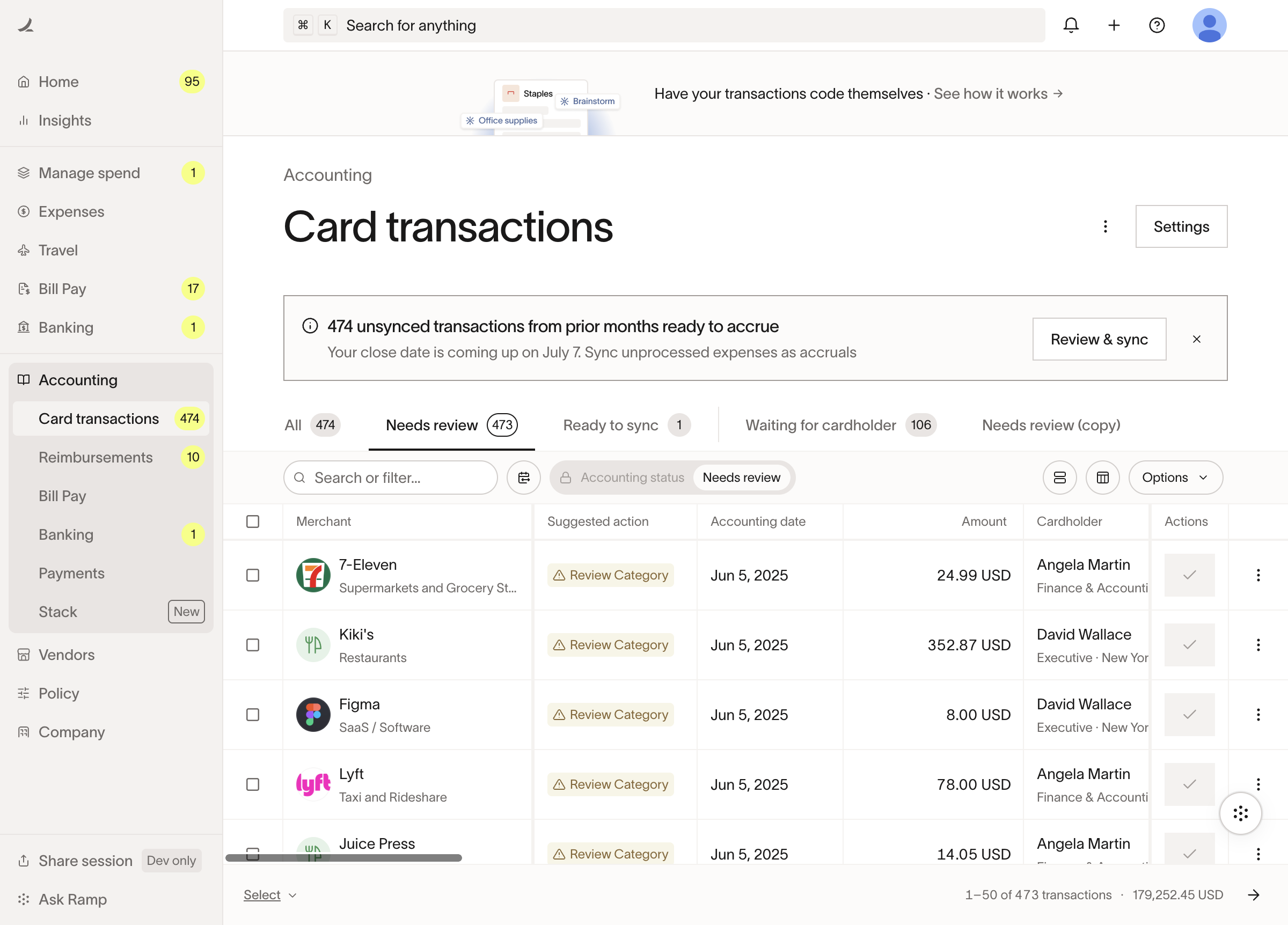
A card transaction is eligible to sync once it has cleared and is coded to Ready to Sync in Ramp. To reach Ready to Sync, these fields must be completed in Ramp:- Account (required)
- Vendor (required)
- Department (optional)
- Tag groups (optional)
- Automatic (default)
Campfire pulls the transaction on its own once it hits Ready to Sync, in
real time through Ramp webhooks and reconciled on the three-hour cycle.
Nobody needs to click anything. Click Sync Data on the connection to
pull immediately (the button then waits 2 minutes before it can run again).
How it posts
When the transaction syncs, Campfire posts a credit card journal entry:| Side | Account |
|---|---|
| Debit | Expense account, from your Ramp coding |
| Credit | Ramp card liability, the Ramp Card Account on the connection |
Amortization
To spread a card expense across periods, code it for amortization in Ramp. Campfire posts the line to the prepaid asset account and recognizes the expense over the date range. Set it up once, then code the transaction:- Make the prepaid account visible in Ramp. In Campfire, set the account’s sub-type to Prepaid and keep it active. Only active prepaid-subtype accounts are pushed to Ramp as prepaid options.
- Enter dates Ramp can read. Use a plain date format such as YYYY-MM-DD for the prepaid start and end dates in Ramp. The start must be on or before the end, or the transaction fails to sync.
- Code both accounts on the transaction. Put the expense account on the line and select the prepaid asset account in the prepaid field. Campfire posts the line amount to the prepaid account and amortizes it to the expense account across the dates.
Statement payments and cashback
- Statement payments. When you pay down your Ramp card balance, Campfire recognizes the payment from your bank feed rather than creating it. The bank transaction’s description must contain RAMP STATEMENT, or contain both RAMP PAYMENTS and STATEMENT (“RAMP PAYMENTS” alone also appears on bill payments and reimbursements, so it isn’t matched by itself); Campfire then moves it out of uncategorized and onto your Ramp card account, reducing the card liability. If it cannot match, the transaction stays uncategorized for you to code to the Ramp card account.
- Cashback. Cashback redemptions post a journal entry that debits your Ramp card account and credits an uncategorized account. Categorize that credit to your cashback income or expense account.
Troubleshooting
Why hasn't a card transaction synced?
Why hasn't a card transaction synced?
Confirm the transaction has cleared, has its Account and Vendor
completed in Ramp, and is marked Ready to Sync. It must also be dated on
or after the connection’s Pull From date. The automatic sync looks back
60 days, so a transaction coded Ready to Sync more than 60 days after it
cleared won’t be pulled on its own. If Enable Sync Buttons in Ramp is
on, the transaction only syncs when someone clicks Sync on it in Ramp;
otherwise trigger a sync from the connection in Campfire, or use Ramp’s Sync
button for anything past the 60-day window.
The credit side posted to the wrong account.
The credit side posted to the wrong account.
Card transactions credit the Ramp Card Account set on the connection’s
entity mapping. Update that account under Settings > Connections >
Ramp; new transactions
post to the updated account.
A prepaid transaction isn't amortizing.
A prepaid transaction isn't amortizing.
Check that the prepaid account has its sub-type set to Prepaid in
Campfire (so it appears in Ramp), that the prepaid start and end dates are
in a readable format with the start on or before the end, and that both the
expense account and the prepaid account are coded on the transaction in
Ramp.
A statement payment stayed uncategorized.
A statement payment stayed uncategorized.
Campfire matches statement payments only when the bank transaction’s
description contains RAMP STATEMENT, or both RAMP PAYMENTS and
STATEMENT. If your bank feed uses different text, categorize the
transaction to your Ramp card account manually.
Related
Overview
The full sync picture across all record types.
Sync settings
Cardholder-as-vendor and other posting options.